
How to Apply for Negotiation in RFQ from Customer?
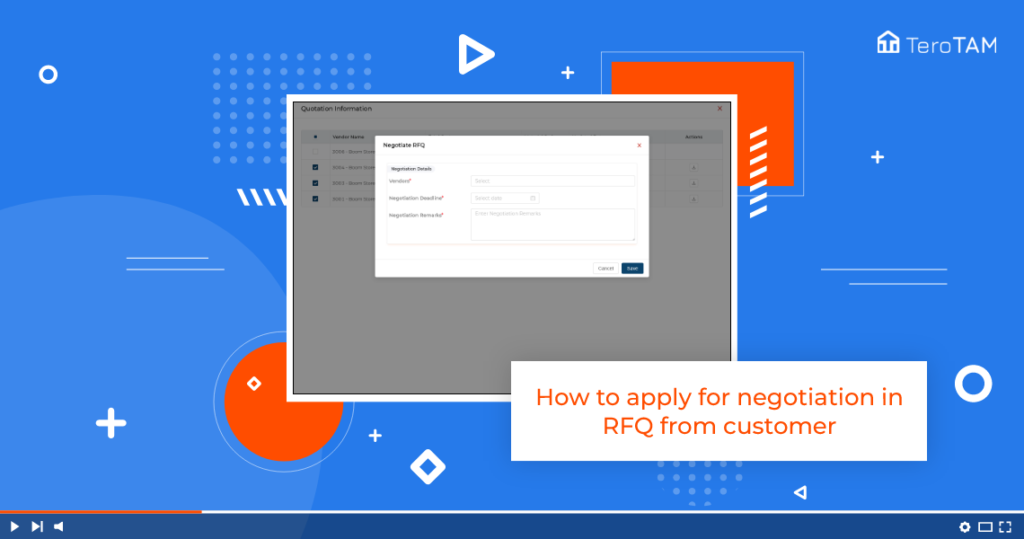
Apply for negotiation in RFQ from the vendor side eProcurement portal. Which process makes it easier to select the vendor for negotiation and set the timelines. Follow the below steps to apply for negotiation from the vendor. Login into the eProcurement portal: Go to RFQ on the welcome screen, then an RFQ management page will […]
How to Add Approval Levels in RFQ
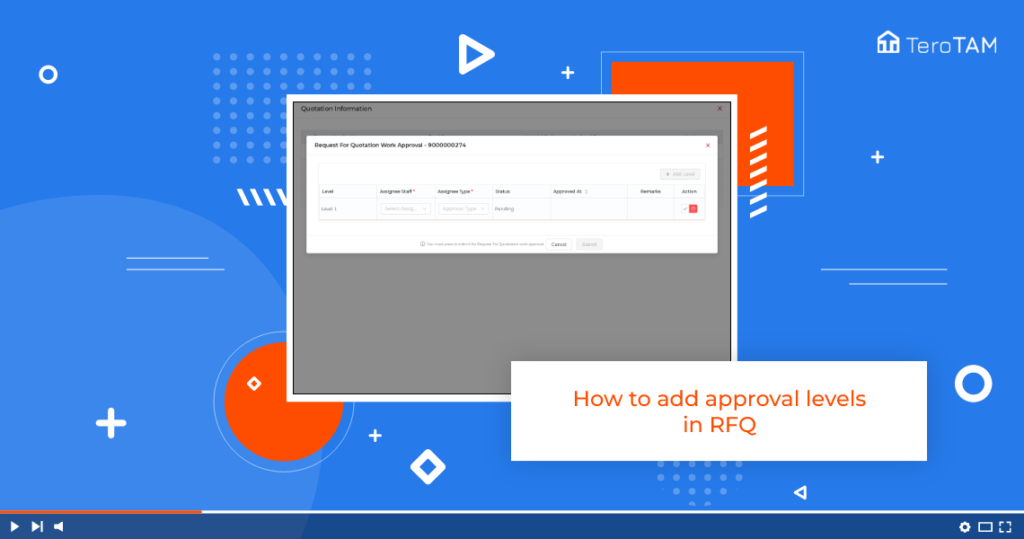
eProcurement has a feature to add the level of approvals to approve the RFQ by adding the assignees to make sure data is reliable and view the list of vendors in a list. Also, allows comparing the request quotations and prices. Follow the below steps to Add Approval Levels in RFQ. Login into the eProcurement […]
How to Edit Purchase Request (PR)?
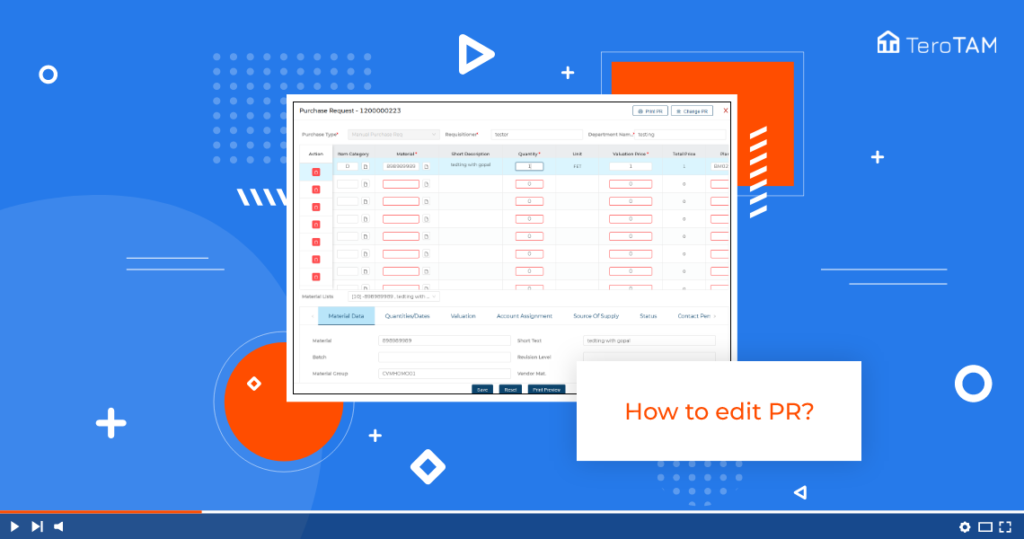
The eProcurement tool has the option to edit your Purchase Request according to the requirement plans and submit it to the respected vendor. Follow the below steps to edit the Purchase Request. Login into the eProcurement portal: On the purchase request, the welcome page where you will find all the lists of created PR’s. Click […]
How to Create RFQ with PR Reference?
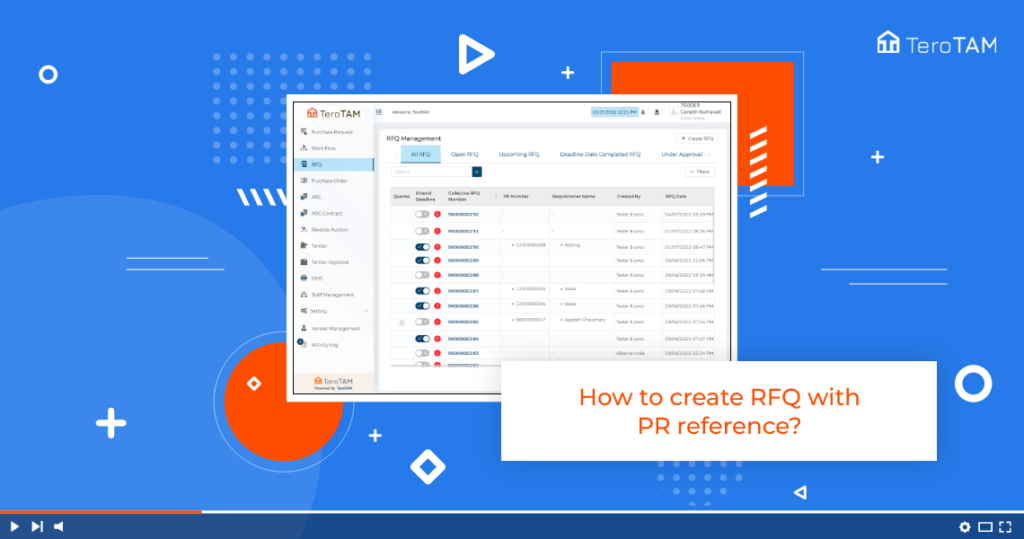
It is an easy way to create a Request For Quotation with the PR reference by using the digital version eProcurement software. Using these custom forms saves your intellectual time with dynamic features. Follow the below steps to create RFQ with PR. Login into the eProcurement portal:
How to Print Purchase Request (PR)?

The new age of eProcurement software saves the real-time user inputs for PR, RFQ, Rate card, and more details to take the Print out data and share with externals. Follow the below steps to print Purchase Request. Login into the eProcurement portal: On the PR welcome screen you can see the purchase request page. Here […]
How to Delete and Restore Purchase Request (PR)?
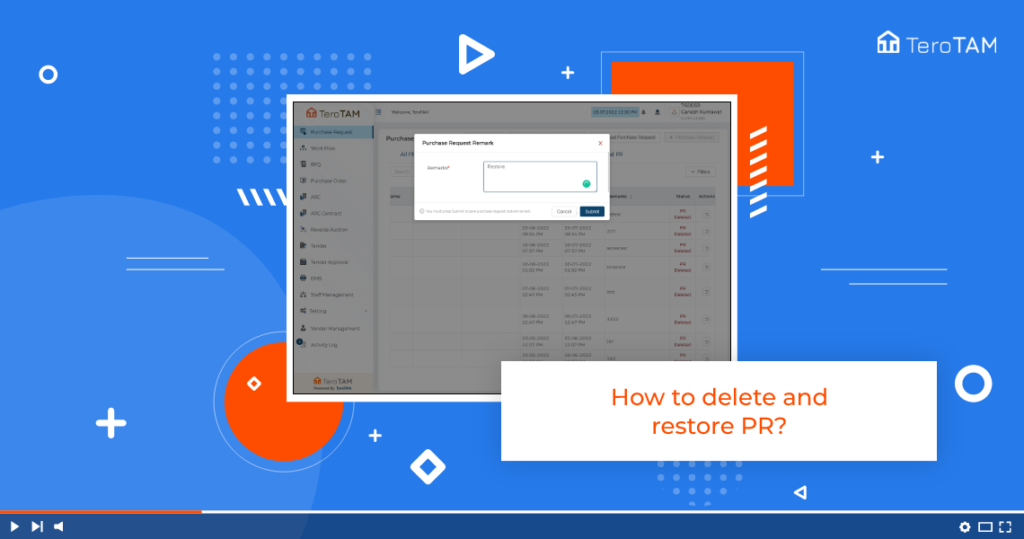
eProcurement is a custom version software tool to create, edit, delete, and restore PR. It has glance featured options to plan the requirements and store the procurement data. Follow the below steps to delete and restore the Purchase Request. Login into the eProcurement portal: Login into the eProcurement portal. There you will see the Purchase […]
How to Create Service Purchase Request?

Create service PR by using eProcurement cloud software, which is a high-end design application to collect all your business procurement needs with dynamic custom features and solutions. Follow the below steps to create a service Purchase Request. Login into the eProcurement portal: After login, you will see the Purchase Request page welcome page. Click on […]
How to Create Request For Quotation Manually?
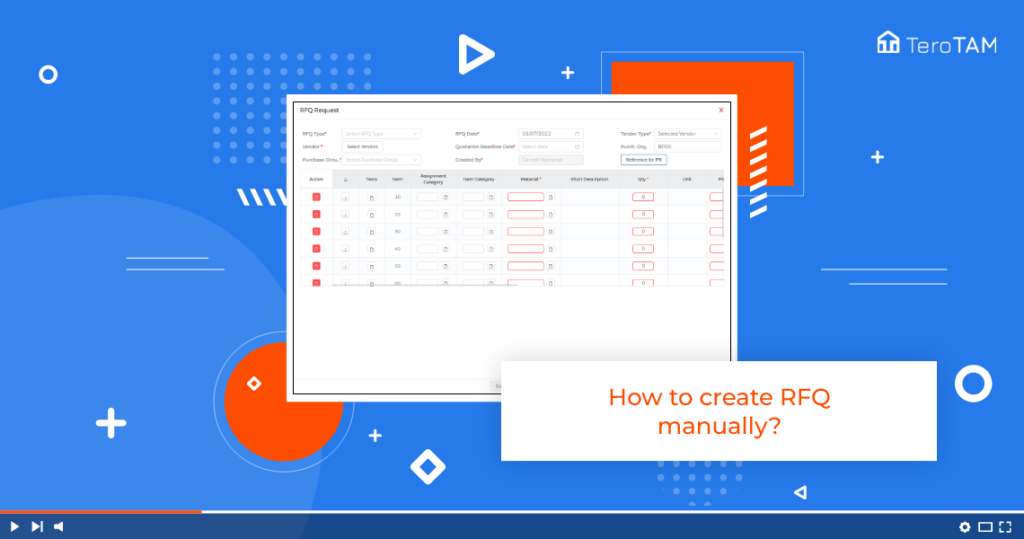
Digital Electronic Procurement made it easy to create a Request For Quotation (RFQ) with the business requirements and submit it through application to the vendor. Follow the below steps to create RFQ manually. Login into the eProcurement portal. Once logged in, go to the Side menu bar and click on RFQ. Click RFQ on the […]
How to Create Purchase Request?
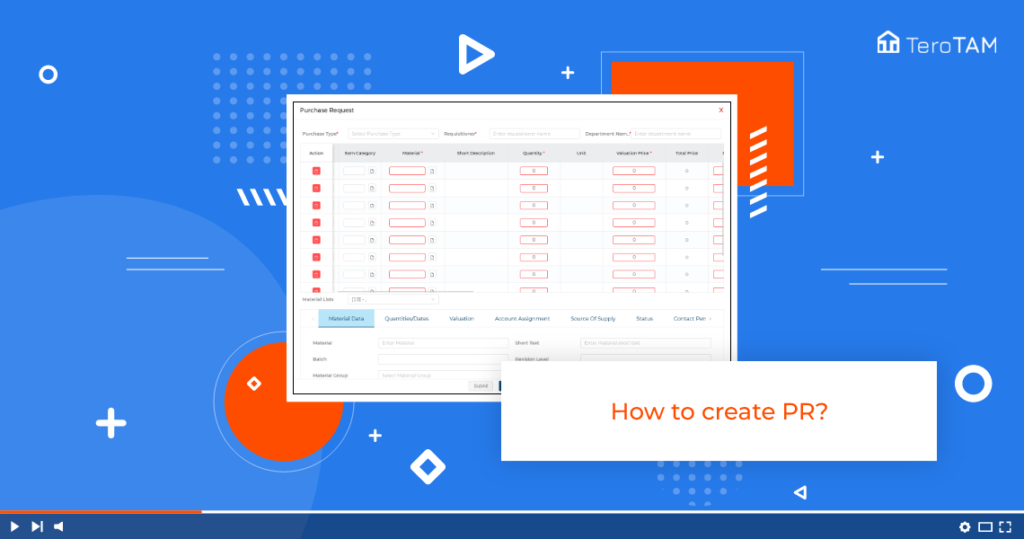
eProcurement software allows users to create Online Purchase Requests with comprehensive details through a web-based custom form and submit them to a suitable vendor. Follow the below steps to create Purchase Requests. Login into the eProcurement portal. login into the eProcurement portal to create a new PR Click on + Purchase Request on PR welcome […]
How to Bulk Upload Purchase Request?

TeroTAM eProcurement software allows users to bulk upload the procurement requirements providers by providing an exclusive form submission option from the customer portal. Follow the below steps to bulk upload purchase requests. Login into the eProcurement portal. On top of the page, you will find an option for upload Purchase Request option. Click on that, […]