
How to Add Approval Levels in Purchase Order (PO)?
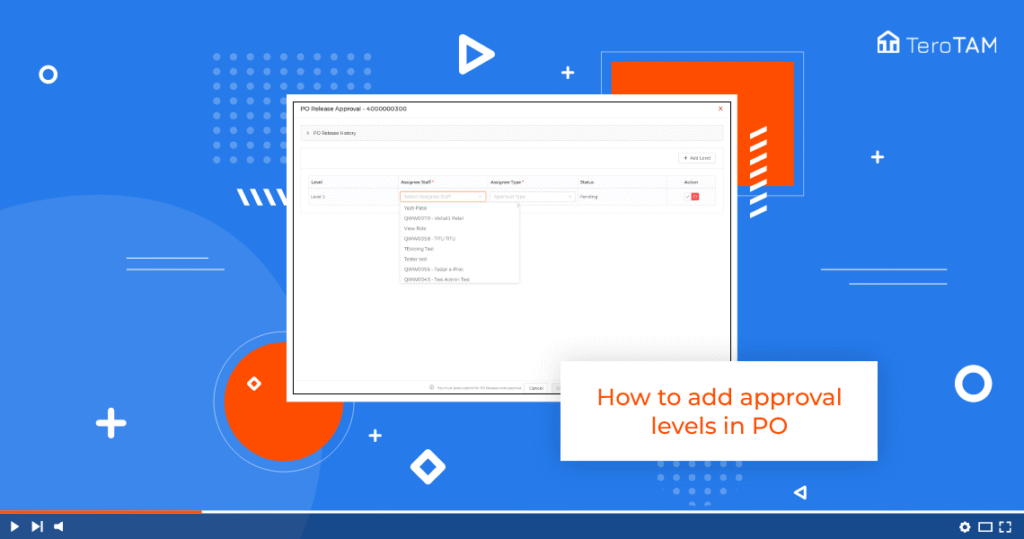
eProcurement software has a set of secured approved levels in Purchase Order to approve and delete the order. Follow the below steps on how to add approvals in Purchase Order. Login into the eProcurement portal: Go to the Purchase Order tab on the left side of the screen. Go to Pending PO. To add the […]
How to Edit Purchase Order (PO)?
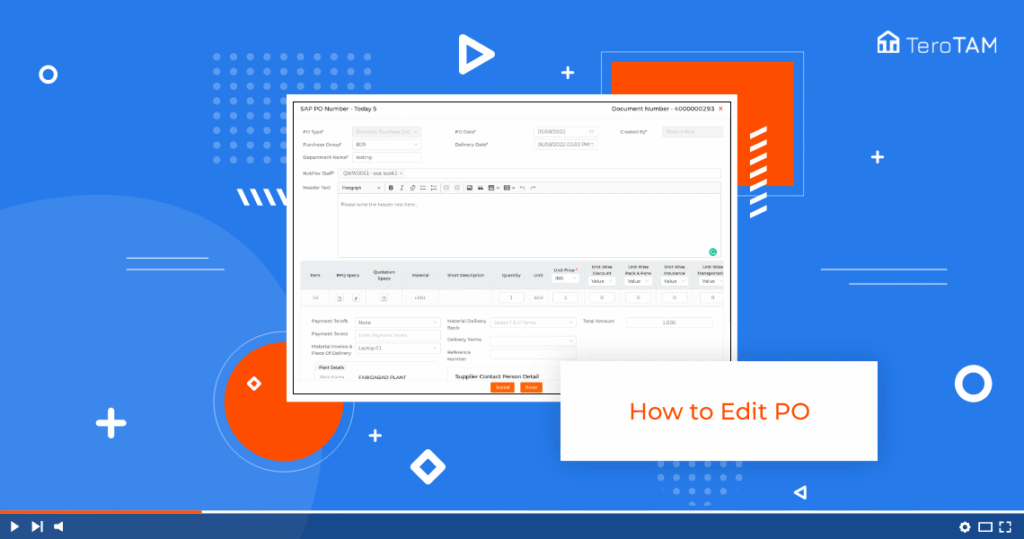
The TeroTAM eProcurement software is the most flexible tool to add Purchase Orders in quick minutes and allows you to edit PO simply as you want. Follow the below steps to edit the Purchase Order. Login into the eProcurement portal: Let’s start by logging into the portal from the side menu, go to the Purchase […]
How to Create Purchase Order (PO) with PO?
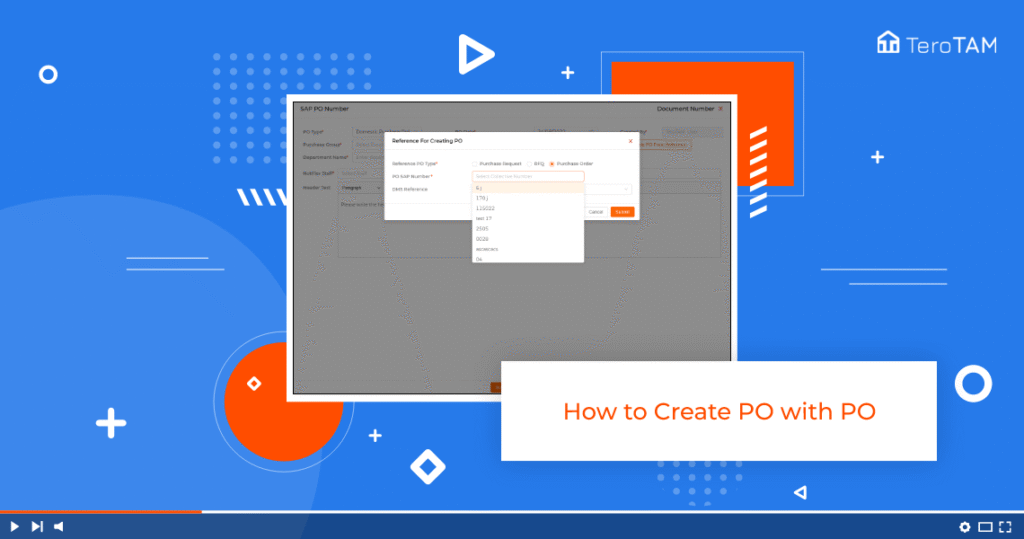
By using TeroTAM eProcurement software you can create the PO with PO simply by collecting comprehensive details. It takes less time to create your Purchase Order through the web-based service. Let’s start by logging into the eProcurement web Portal from the side menu. Go to purchase order. To create a new PO, click on the […]
How to Create PO from Request For Quotation (RFQ)?
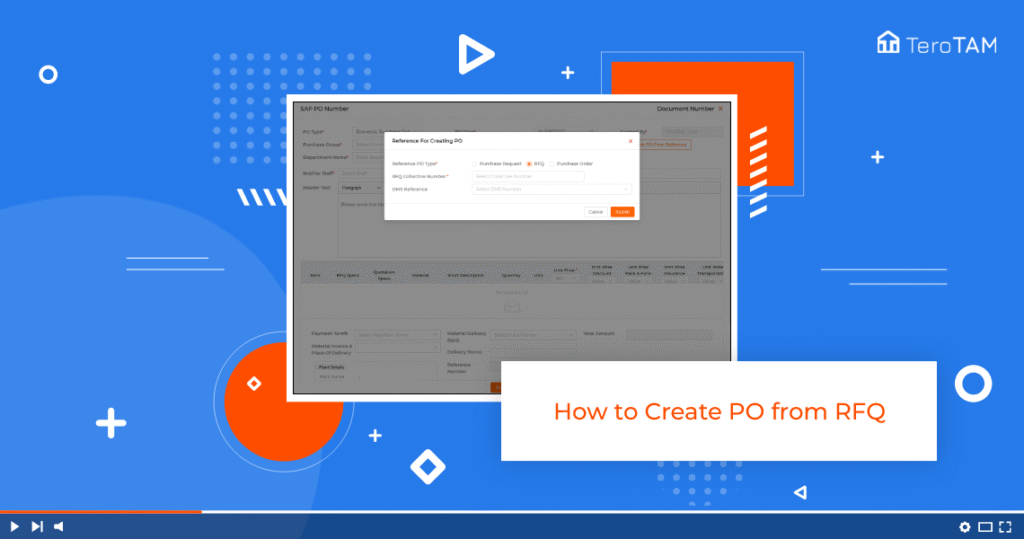
Using the cloud-based TeroTAM eProcurement software you can create the Purchase Order from the RFQ (request for quotation) through the web portal. Follow the below steps to create a PO from RFQ. Login into the eProcurement portal: Let’s start by logging into the eProcurement web Portal From the side menu. Go to Purchase order to […]
How to Create Purchase Order (PO) from Purchase Request (PR)?
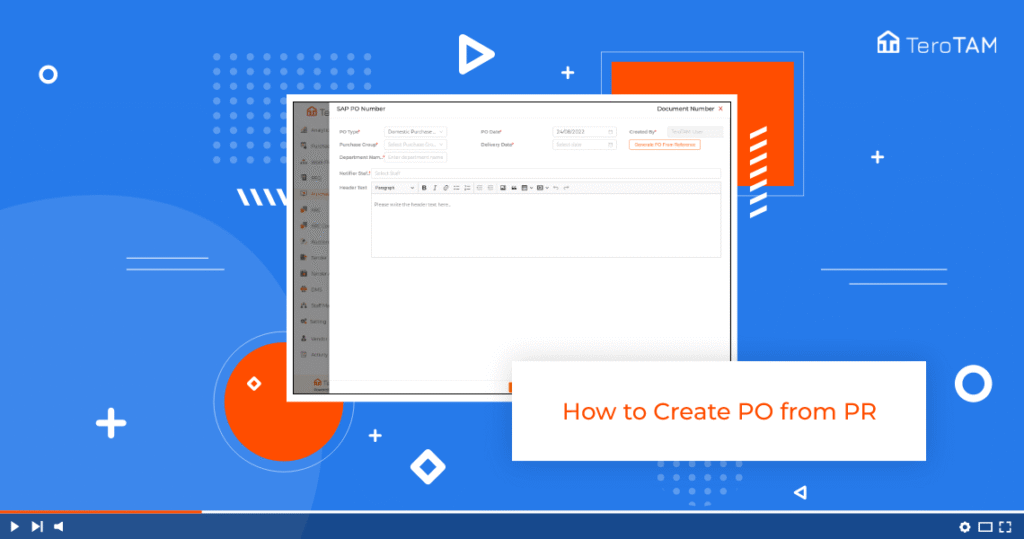
The TeroTAM eProcurement software has a feature to create Purchase Order from Purchase Request. It allows you to create a purchase order by collecting comprehensive details and purchase requirements. Follow the below steps on how to create PO from PR. Login into the eProcurement portal: Let’s start by logging into the eProcurement web Portal from […]
How to Export Purchase Request (PR) Data?
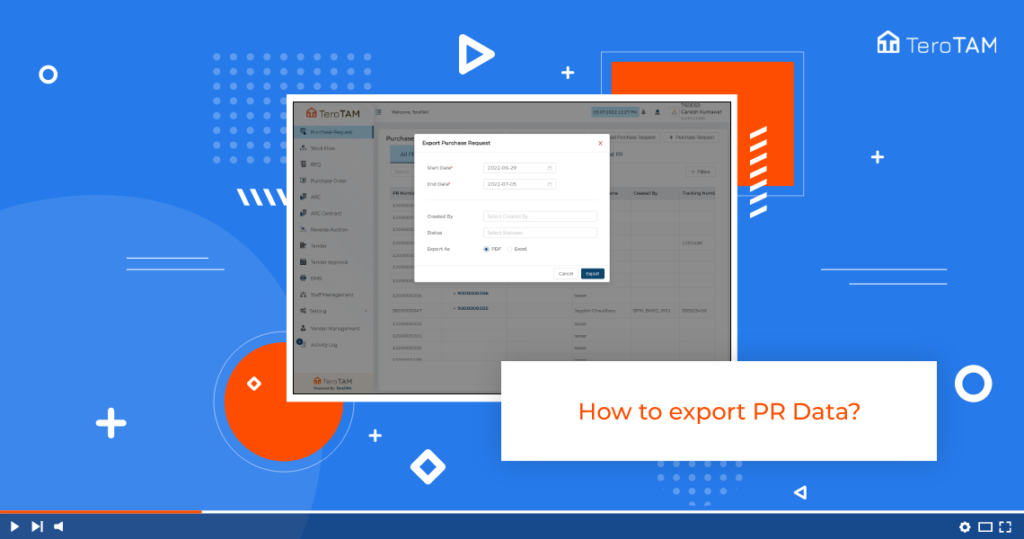
The advantages of enabling eProcurement software carry the intuitive business procurement data in a systematic manner and allow you to export data into multiple formats. Follow the below steps to export the Purchase Request. Login into the eProcurement portal: Login into the eProcurement portal you can see a purchase request page. On the top, you […]
How to Edit Request For Quotation (RFQ)?
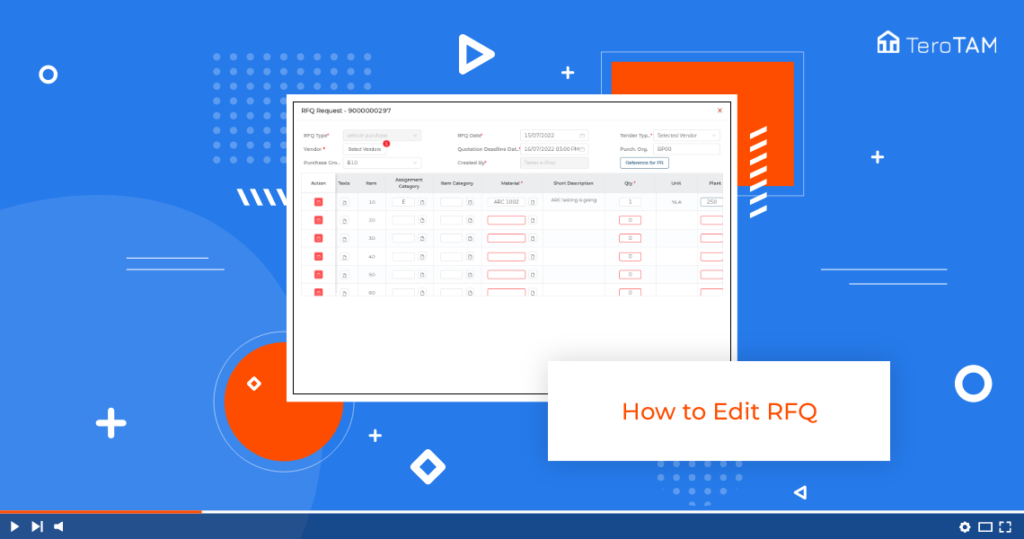
Edit your RFQ (request for quotation) anytime and easy to update data through the eProcurement cloud-based application. Follow the below steps to delete RFQ. Login into the eProcurement portal: See here how to edit created RFQ in TeroTAM eProcurement Customer Portal. Let’s start by logging into the portal. From the side menu, go to RFQ. […]
How to Delete Request For Quotation (RFQ)?
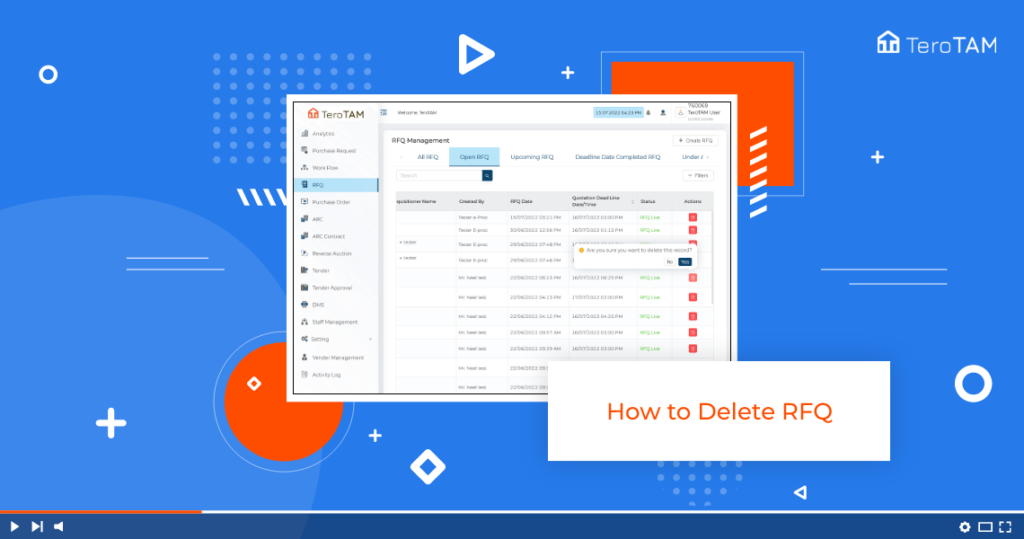
TeroTAM eProcuremenet allows deleting the RFQ in a quick minute and enables reviewing the details under the canceled RFQs. In this process, you can mention the required comments and delete RFQ with clear information. Follow the below steps to delete RFQ. Login into the eProcurement portal:
How to Approve RFQ from Workflow?
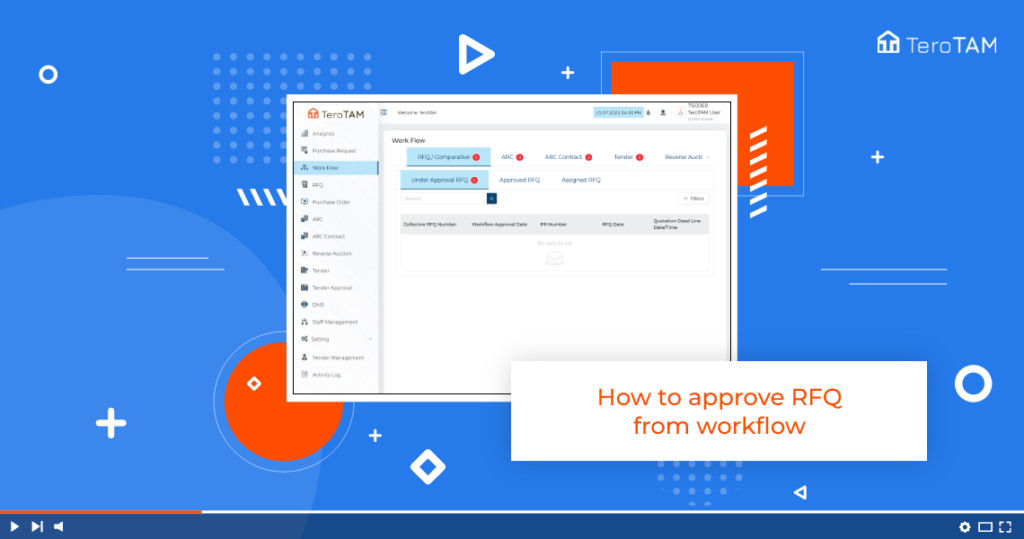
TeroTAM eProcuremnet allows to set approval levels to take forward the process and enables to add of attachments, remarks, and view requests that all you can achieve by RFQ from the workflow. Follow the below steps to approve RFQ from the workflow. Login into the eProcurement portal: Let’s start by logging into the portal to […]
How to Apply Quotation from the Vendor?
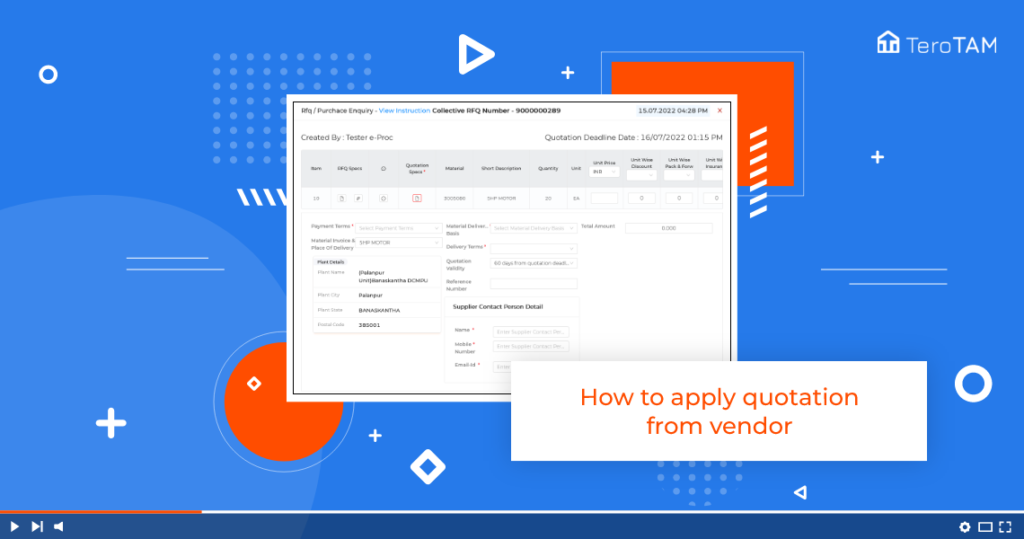
By using the TeroTAM eProcurement software Apply Quotation from the vendor portal. By login in you can perform the actions to view quotation details and update the latest info. Also, create a new quotation by choosing custom details and fields. Follow the below steps to apply for negotiation from the customer. Login into the eProcurement […]